
Local Preview & Debugging
Before pushing posts or config changes to remote, you can run a local development server to preview Markdown rendering and styling in real time.
Prerequisites
Ensure you have both repositories available on your computer:
- Theme Code Repository (e.g.,
D:\Code\Shirone); - Personal Content Repository (e.g.,
D:\Code\my-blog-content).
Install dependencies in the theme repository:
- Windows:
pnpm.cmd install - Linux / macOS:
pnpm install
Method 1: Single Sync Preview Fast
Configure Path and Sync Content
Navigate to the theme code repository root and run:
Windows (PowerShell)# 1. Set the absolute path of your content repository $env:CONTENT_DIR = "<your-content-repo-path>" # e.g. "D:\Code\my-blog-content" # 2. Run a single sync to materialize content pnpm.cmd content:sync # 3. Start local development server pnpm.cmd devLinux / macOS (Bash / Zsh)# 1. Set the path of your content repository export CONTENT_DIR="/Users/yourname/Code/my-blog-content" # 2. Run a single sync pnpm content:sync # 3. Start development server pnpm devSet content path and execute sync:
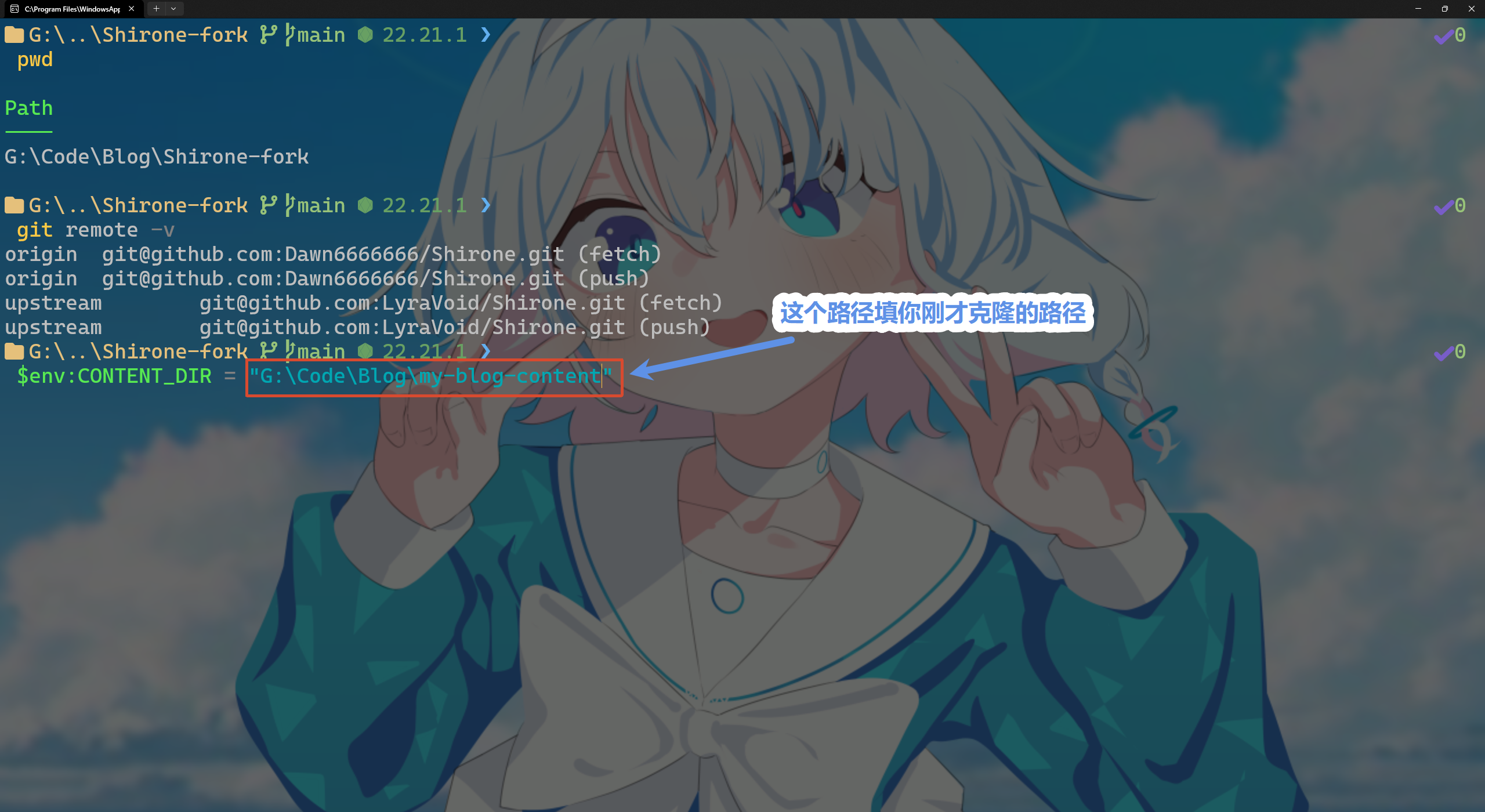
Start Local Development Server
Start development server in terminal:
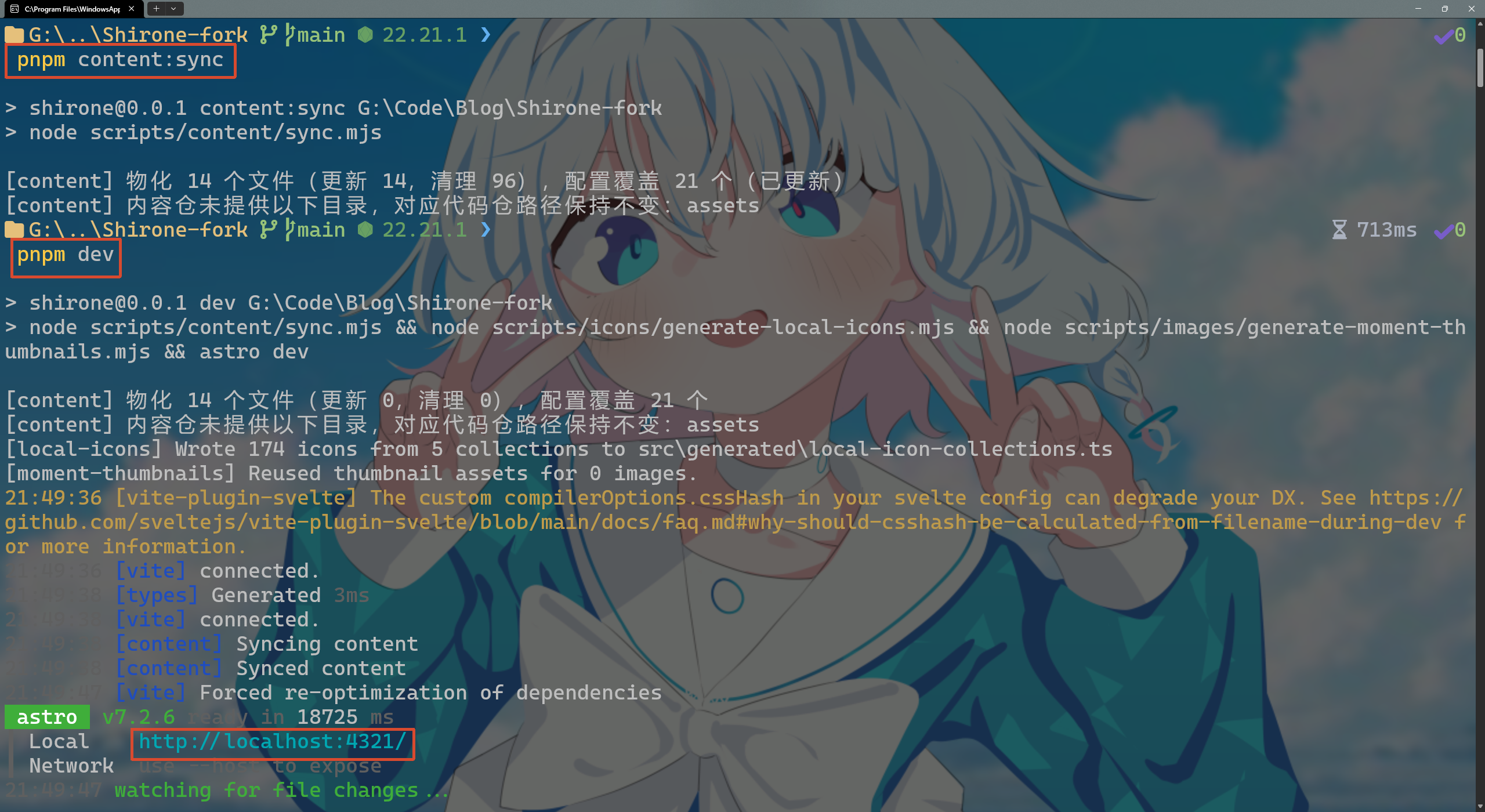
View in Browser
Once the terminal outputs the local URL:
Local http://localhost:4321/Open
http://localhost:4321/in your browser to see your blog rendered from your private content repository: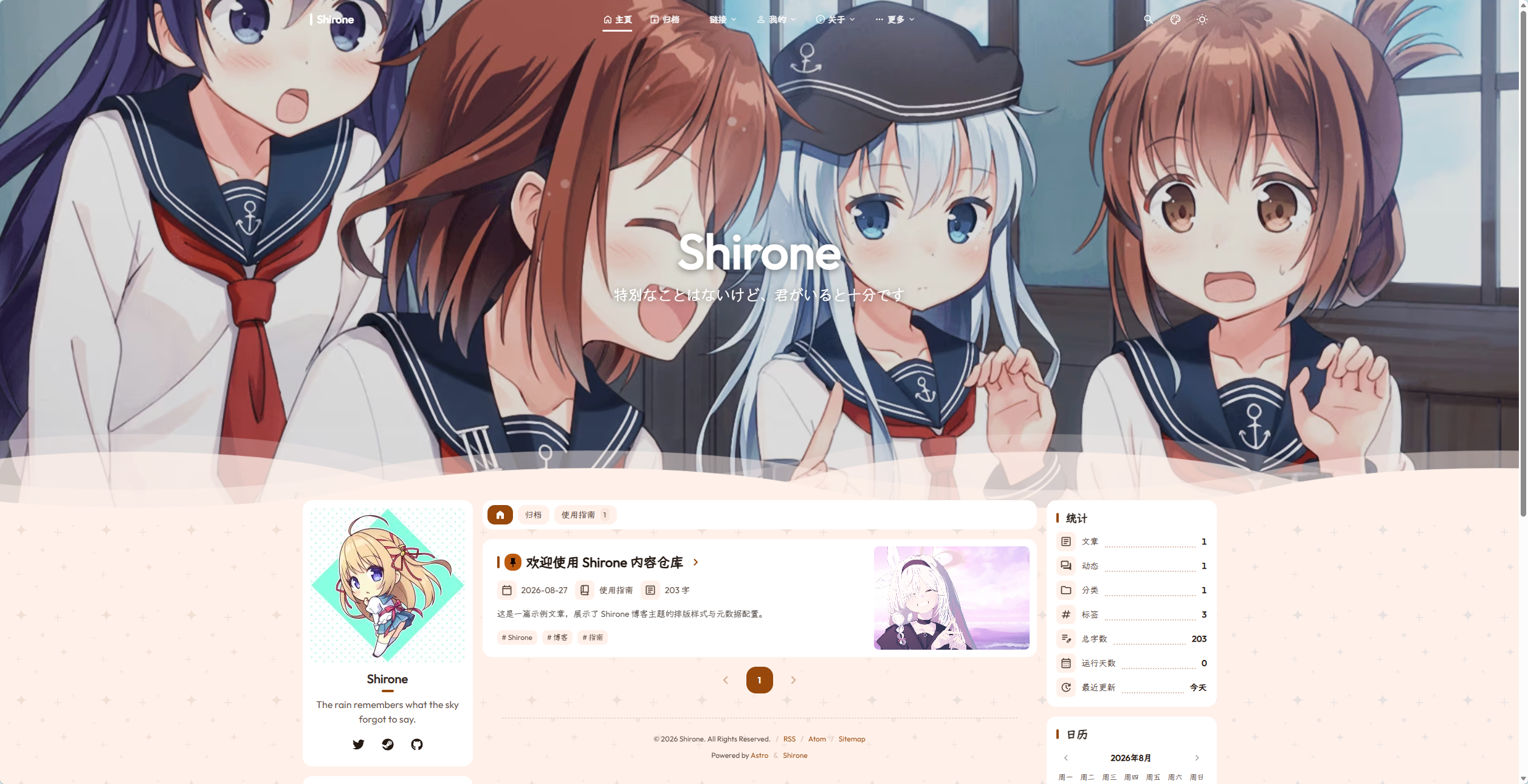
Method 2: Live Incremental Watch Mode Recommended
When frequently drafting Markdown posts or tweaking YAML styles, running sync manually can be tedious. Use live incremental watch mode:
Launch Development Server (Terminal 1)
$env:CONTENT_DIR = "<your-content-repo-path>" # e.g. "D:\Code\my-blog-content"
pnpm.cmd dev
Launch Incremental Watcher (Terminal 2)
$env:CONTENT_DIR = "<your-content-repo-path>" # e.g. "D:\Code\my-blog-content"
pnpm.cmd content:watch
Whenever you save (Ctrl + S) a file in your external editor (such as Obsidian, VS Code, or Typora), changes will be synced incrementally in milliseconds and trigger browser hot module replacement.
Simplify Environment Configuration
Create a .env file in the root of your theme repository so you do not need to set $env:CONTENT_DIR manually each time:
CONTENT_DIR="<your-content-repo-path>" # e.g. "D:/Code/my-blog-content"FAQ
How to stop local development?
Error: Path not found
External images not updating in browser
Next Steps
- Head to CLI Workflows & Toolchain: Learn validation, status inspection, export, and clean commands
Copyright
Copyright Ownership:matsuzaka-yuki
License under:Attribution 4.0 International (CC-BY-4.0)